User Manual

Step-by-step guide to downloading, installing, and using MT5 Tick Data for strategy validation in MetaTrader 5.

Introduction

Modern strategy validation requires tick-precise historical data rather than minute-based charts. Tick data is considered the standard for validating automated systems today. While MetaTrader 5 includes a powerful integrated strategy tester, most providers limit the availability of historical tick data to just a few months.

MT5 Tick Data gives you access to an independent data source of tick-precise data going back up to 20 years, available in different spread variations and for numerous symbols across currencies, indices, metals, energy, and cryptocurrencies.


Step 1: Download

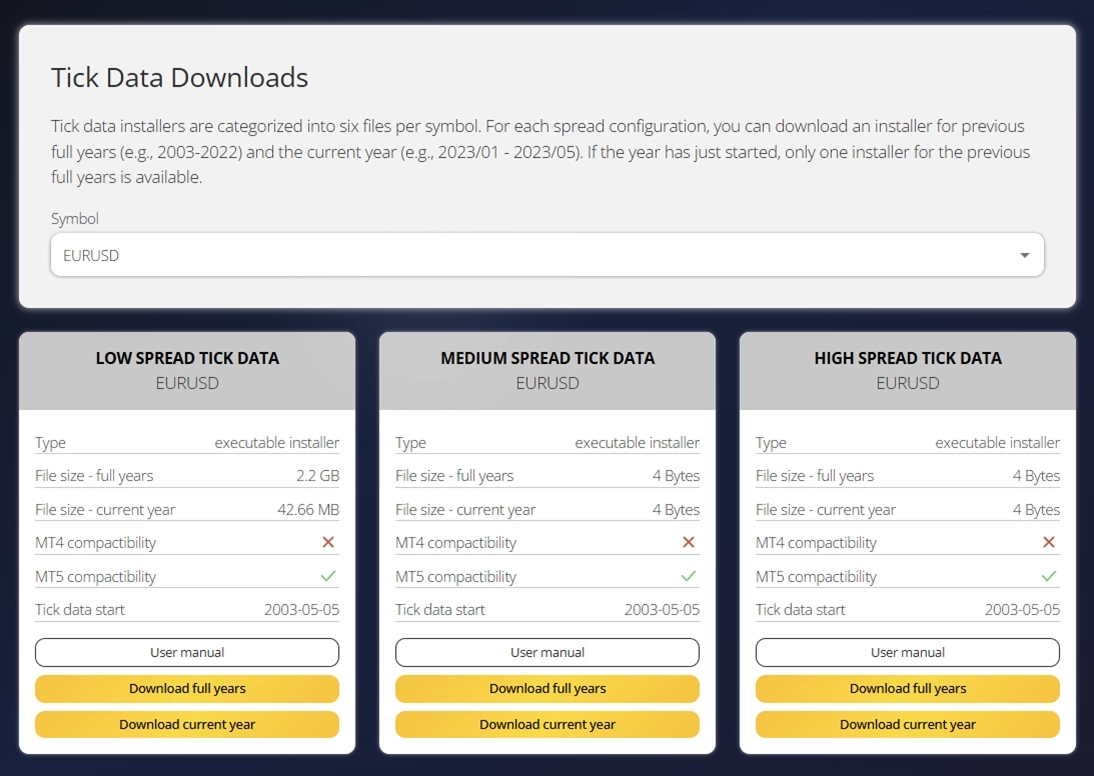
The MT5 Tick Data for each symbol can be downloaded as an installer from our web-based Download Center. After logging in with your subscriber account, you will see the full list of available symbols.

Simply select the symbol and spread profile you need, then click the download button. Each symbol downloads in approximately 10 minutes thanks to our optimized servers.

Tick data download center

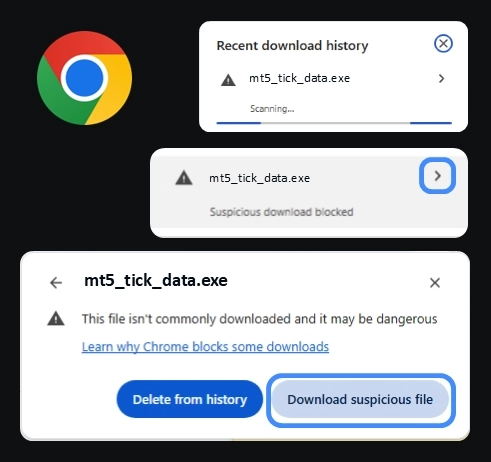
Your browser may display a warning when downloading the executable file. This is standard behavior for .exe downloads — simply choose to keep the file.

Tip: Not sure which spread profile to choose? Start with SPREAD_MEDIUM — it represents average market conditions and is suitable for most validation scenarios. See Included Symbols for the complete list of available symbols and spread profiles.


Step 2: Installation

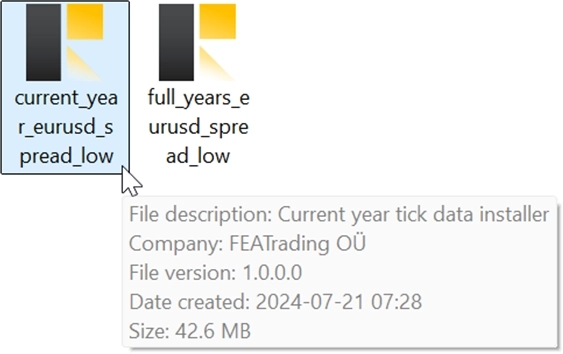
Double-click the downloaded setup file to begin the installation process.

Tick data One-Click Smart Installer

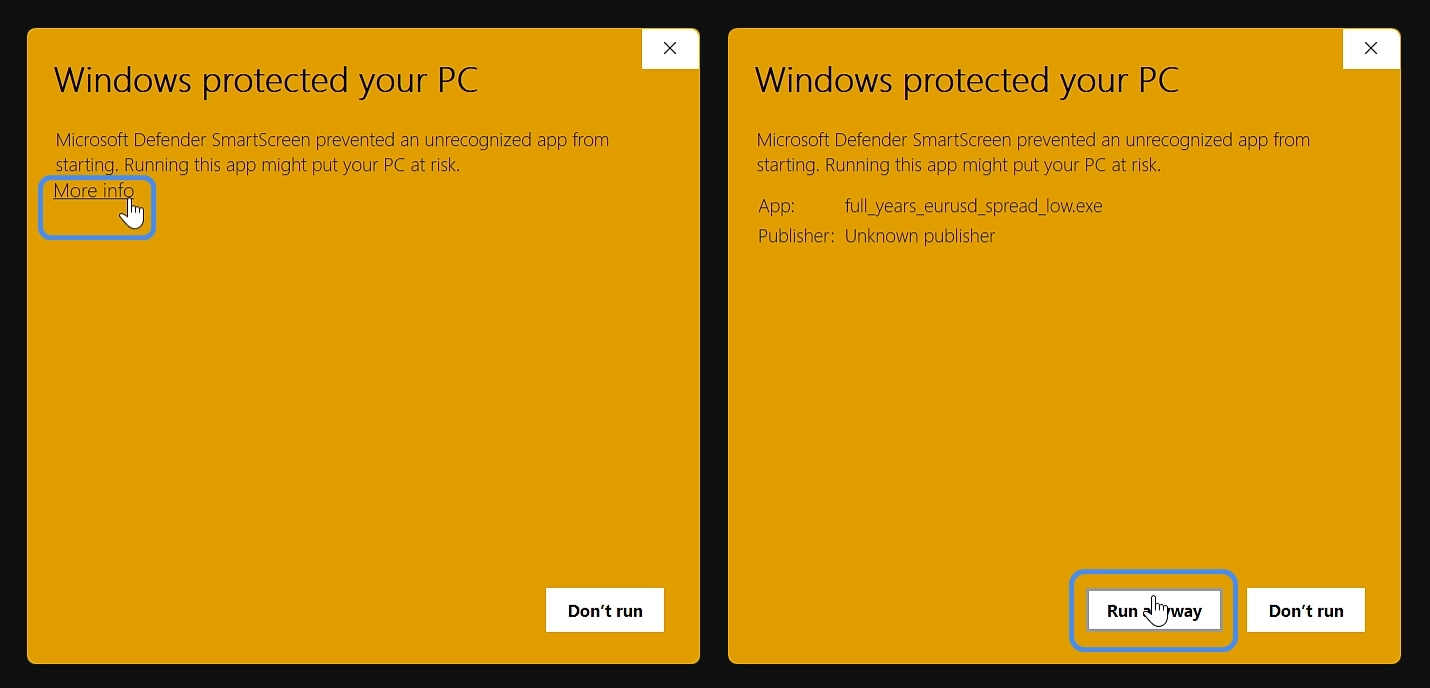
Windows Security Warning

Windows may display a SmartScreen security warning because the installer is not yet code-signed. This is expected and safe to proceed:

  1. Click "More info" on the Windows SmartScreen dialog
  2. Then click "Run anyway" to continue the installation
Windows installation warning 1 Windows installation warning 2

Login Credentials

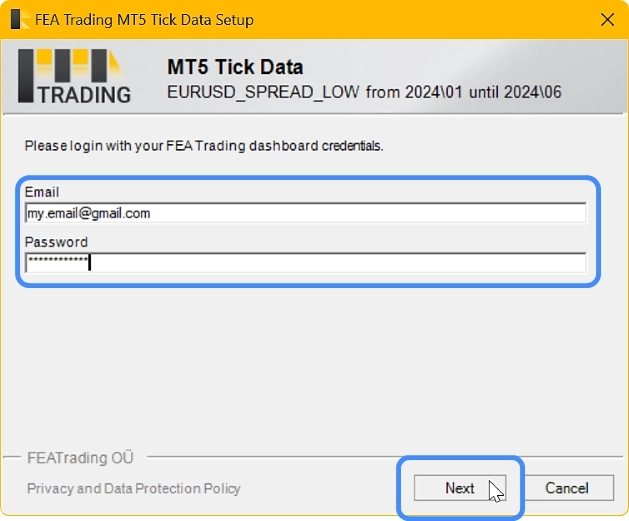
During installation, you will be prompted to enter your FEA Trading dashboard login credentials to verify your subscription.

MetaTrader 5 Instance Selection

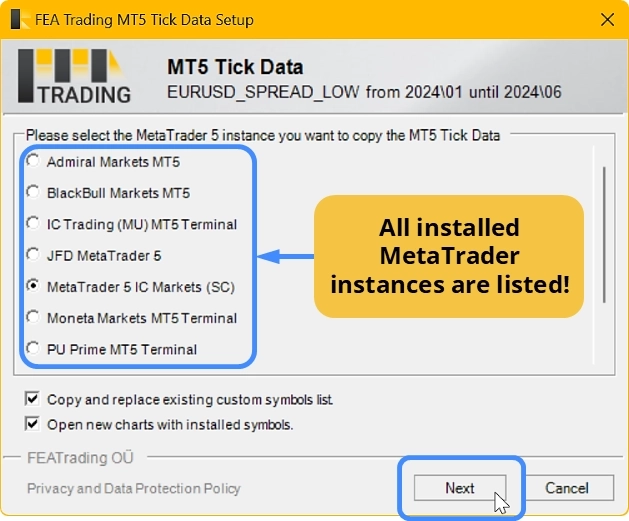
If you have multiple MetaTrader 5 installations on your computer, the installer will ask you to select the correct instance. Choose the MetaTrader 5 installation where you want to use the tick data.

Setup, Selecting MetaTrader instance

Important: The selected MetaTrader 5 instance must be closed before starting the installation. If it is still running, the installer will display a warning.

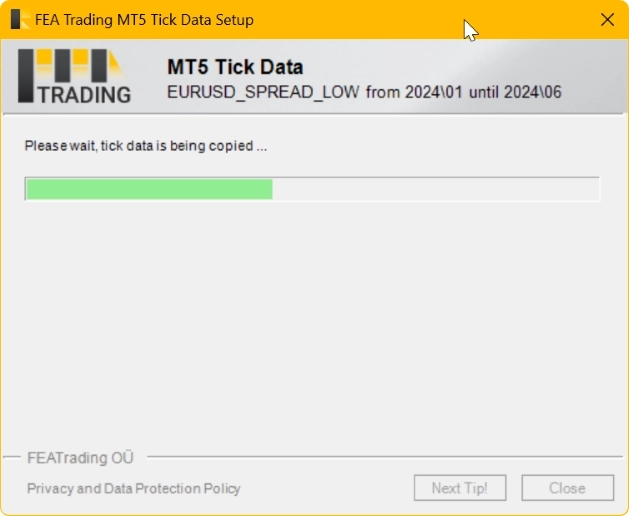
Copying of Tick Data

The copy process may take several minutes as substantial amounts of data are being transferred and configured. Please wait for the process to complete.

Note: Installers are updated monthly, typically around the 10th of each month, to include the latest tick data. Simply re-download and re-install to get the newest data.


Step 3: Discover Data in MetaTrader 5

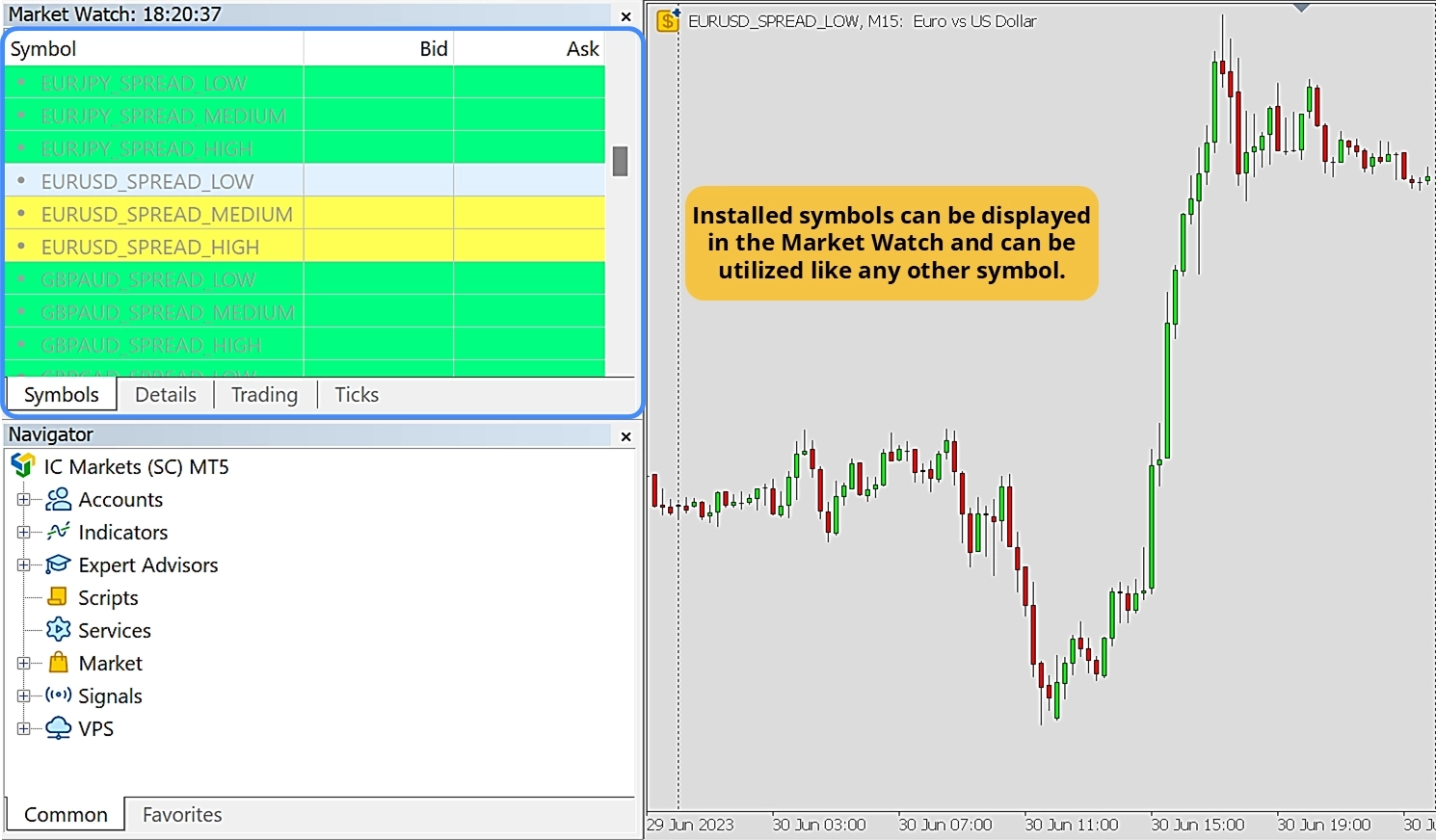
After installation, restart MetaTrader 5. The market watch will now display the custom symbols added by the installer. Three custom symbols appear per asset — one for each spread profile (Low, Medium, High).

These are offline symbols designed exclusively for use with the strategy tester. They are not intended for live use.

Tip: The installer simultaneously adds all custom symbols to the market watch but copies only the tick data for the selected symbol. We recommend using separate MetaTrader 5 instances for live use and historical validation to keep things organized.


Step 4: Using MT5 Tick Data with the Strategy Tester

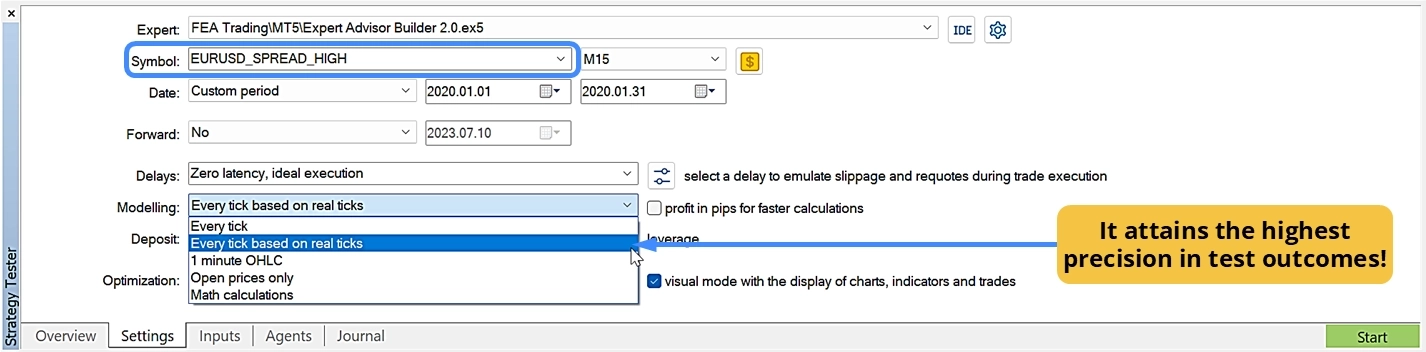
Open the strategy tester in MetaTrader 5, select your installed custom symbol, and configure the following settings for the most accurate validation results:

SettingRecommended Value
SymbolSelect the installed custom symbol (e.g., EURUSD_SPREAD_MEDIUM)
Data modelEvery tick based on real ticks
PeriodChoose your desired timeframe
Date rangeSet start and end dates within the available tick data range
Backtest with 100% real tick data

Important: Always select "Every tick based on real ticks" as the data model to achieve 100% modeling quality — the highest possible accuracy in MetaTrader 5.

Your existing automated strategies require no modifications. MT5 Tick Data operates transparently at the platform level — simply select the custom symbol and your strategy will automatically use the authentic historical data during validation.


Deleting Tick Data

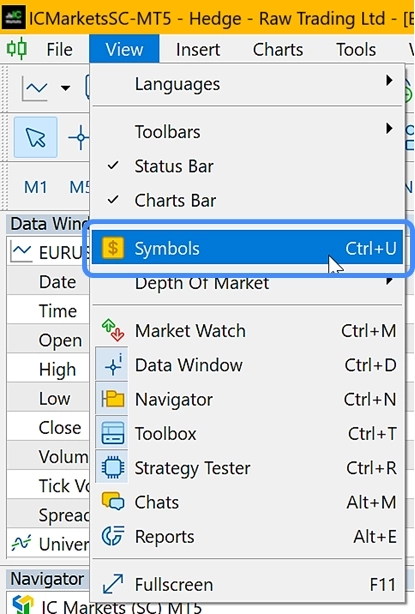
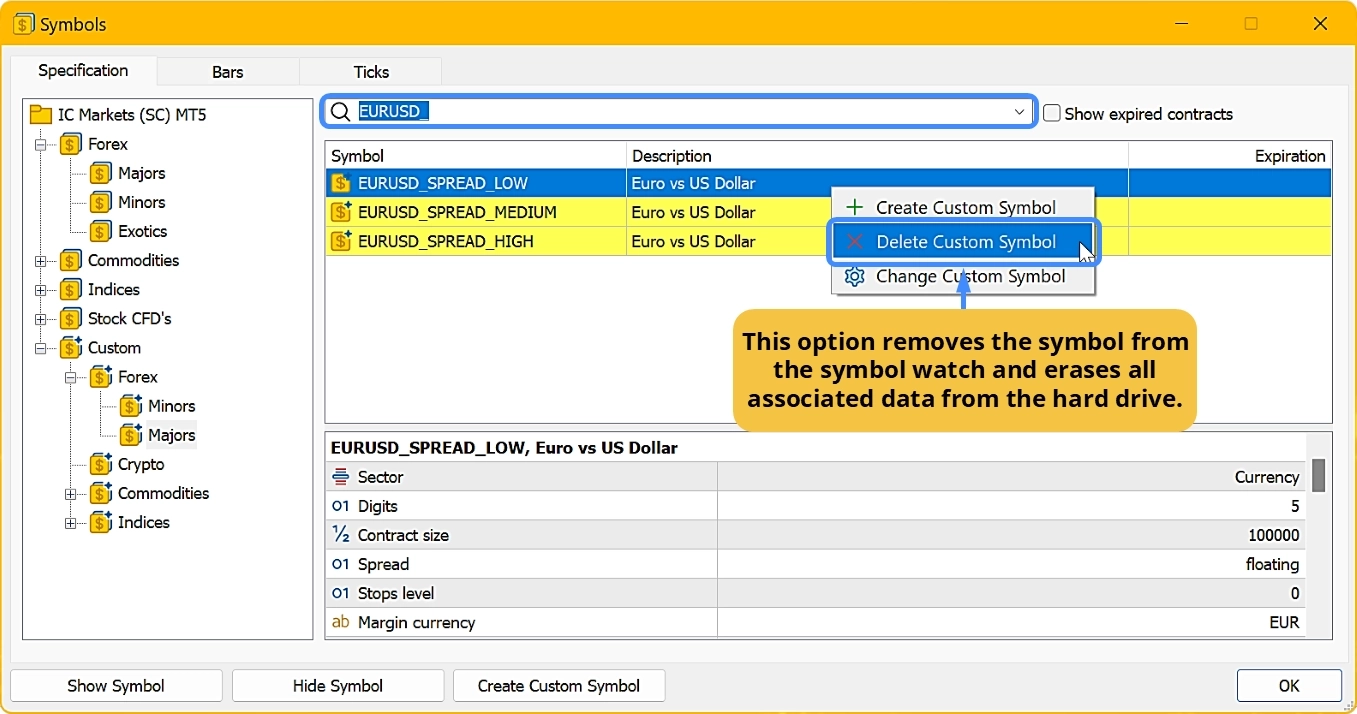
If you wish to remove tick data for any reason, you can use the built-in symbol management window in MetaTrader 5. No special tools or modifications are required — deletion can be performed easily.

  1. Open the symbols management window by navigating to View → Symbols
  2. Search for the name of the custom symbol you want to delete
  3. Right-click the symbol and select Delete from the context menu

This will remove both the tick data and the custom symbol from your MetaTrader 5 instance.


Symbols and Spread Profiles

For the complete list of all available symbols, tick data start dates, spread profile details, and upcoming additions, visit our Included Symbols page.


Quality Reports

Detailed quality reports for every symbol are available in our documentation. These reports show spread distributions, tick counts, data gaps, and other quality metrics for each spread profile.

View Quality Reports →


Quick Reference

TopicDetails
Download speed~10 minutes per symbol
Monthly updatesAround the 10th of each month
Spread profiles3 per symbol (Low, Medium, High)
Supported symbols26 symbols across multiple asset classes
Data ownershipDownloaded data is yours to keep, even after cancellation
Strategy modificationsNone required — works with all existing strategies
TimezoneUTC+02:00 including Daylight Saving Time (DST)

Need Help?

If you encounter any issues during installation or setup, check our detailed documentation or contact our support team at support@fea-trading.com.